
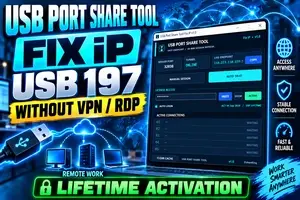
USB Port Share Tool Fix IP Remotely Work – USB 197 Without VPN RDP | LifeTime Activation
USB Port Share Tool Fix IP Remotely Work – USB 197 (Without VPN RDP) | LifeTime Activation
Working with USB-based mobile servicing tools on a remote computer can often become difficult because of VPN configuration, RDP USB forwarding problems, unstable IP addresses, driver conflicts and complicated remote-access setups.
USB Port Share Tool Fix IP v1.0 is designed to simplify this process. It provides a direct USB port sharing workflow that allows a supported USB device, including USB 197, to be accessed remotely using an IP and port endpoint.
The main advantage of this tool is that technicians do not need to depend on a traditional VPN or complicated RDP USB redirection configuration for every session.
The tool provides a simple interface where the server connection, remote endpoint, session timer and active connections can be managed from one place.
What Is USB Port Share Tool Fix IP?
USB Port Share Tool Fix IP is a Windows-based remote USB sharing utility developed for technicians who need to make a locally connected USB device available to another authorized computer over a network connection.
When the USB device is connected to the host computer, the software creates a network endpoint in an IP:PORT format.
For example:
IP ADDRESS : PORT
The remote client can then use the provided endpoint with the supported USB-sharing client or USB 197 workflow.
This eliminates several unnecessary steps normally involved in traditional remote USB setups.
Main Features of USB Port Share Tool Fix IP v1.0
1. USB 197 Remote Work Support
The tool is designed to make USB 197 remote access easier.
Instead of physically transferring the USB device between computers, an authorized technician can connect the required USB device to one PC and access it from another supported system remotely.
This can be especially useful for:
- Remote mobile software servicing
- Authorized technician support
- Remote USB dongle access
- Service-center workflows
- Customer PC support
- USB-based diagnostic devices
2. No Traditional VPN Required
One of the biggest benefits of the USB Port Share Tool is that the normal workflow does not require the user to manually configure a traditional VPN connection.
Traditional VPN setups can sometimes cause:
- IP conflicts
- Slow connection speeds
- Routing problems
- Firewall issues
- Additional software installation
- Complex configuration
USB Port Share Tool Fix IP simplifies the process by generating the required remote endpoint automatically.
3. No RDP USB Forwarding Required
Microsoft Remote Desktop is useful for controlling another PC, but forwarding USB devices through RDP can sometimes be complicated.
Certain USB devices may not appear correctly inside an RDP session, especially hardware that depends on custom USB drivers.
With USB Port Share Tool Fix IP, the USB-sharing connection operates separately from the normal RDP USB forwarding mechanism.
This makes the remote workflow more convenient for supported USB devices.
Fast IP and Endpoint Generation
Once the tunnel/server becomes active, the tool displays the Live Endpoint directly inside the software.
The endpoint contains the information needed for the remote connection.
Example:
159.xxx.xxx.xxx:xxxxx
A dedicated COPY button is available so the complete endpoint can be copied without manually typing the IP address and port.
This helps reduce typing mistakes and makes the connection process faster.
Automatic Session Timer
USB Port Share Tool Fix IP includes an automatic session countdown.
The session starts from approximately:
60:00 Minutes
and counts down toward:
00:00
When the session reaches the refresh point, the software can start the next connection cycle according to its configured session system.
The remaining session time is displayed directly in the interface, allowing the technician to see how much time remains before the connection refreshes.
Manual Session Option
Along with automatic operation, a Manual Session option is available.
This allows the operator to manually control or restart the USB-sharing session when necessary.
It is useful when:
- A connection needs to be refreshed immediately
- The USB device has been reconnected
- A remote client was disconnected
- A new support session is being started
Active Connections Monitor
The software includes an Active Connections section.
This section provides a simple view of available connection slots and their current status.
The technician can quickly check whether a remote connection is:
Waiting, Connected or Active
depending on the current session state.
This keeps the remote USB workflow organized and makes it easier to manage multiple support sessions.
Secure License Login System
USB Port Share Tool Fix IP v1.0 includes a license-based activation system.
Users can enter their valid license key directly into the application.
The login section includes options such as:
Paste License Key
The license can be pasted directly from the clipboard.
Show / Hide
The license field can remain hidden for privacy or be displayed when required.
Activate
The software verifies the license with the authentication server.
Auto Login
After a valid activation, Auto Login can be enabled so the application can automatically verify the saved license during normal startup.
Hardware-Based License Verification
The application can use hardware information to help identify the authorized computer.
This provides a more stable licensing system compared with relying only on temporary Windows information.
Hardware-based identification can help reduce unnecessary license changes when normal software settings are modified.
Users should always follow the license terms provided with their activation.
Clear Cache Option
A Clear Cache button is available inside the software.
This option can be useful if temporary session information needs to be refreshed before creating a new remote connection.
It provides a simple troubleshooting step without requiring the user to manually search for temporary files.
Simple and Professional Interface
USB Port Share Tool Fix IP v1.0 uses a clean dashboard that displays the most important information on a single screen.
The interface includes:
- Server Port
- Tunnel Status
- Live Endpoint
- Copy Endpoint
- Manual Session
- Automatic Countdown
- License Access
- Auto Login
- Active Connections
- Clear Cache
- Tool Version
This makes the application easier to operate even for technicians who do not want to configure complicated networking tools.
How to Use USB Port Share Tool Fix IP
Step 1 – Run the Tool
Download the official USB Port Share Tool package and run the EXE on your Windows computer.
For the best results, make sure your network connection is stable.
Step 2 – Enter Your License
Enter your valid activation/license key into the License Access field.
Click Activate.
After successful verification, you can enable Auto Login if required.
Step 3 – Connect USB 197 or Supported USB Device
Connect your supported USB device to the host computer.
Make sure the correct Windows USB drivers are installed.
The device should appear correctly in Windows Device Manager before starting the remote session.
Step 4 – Start the Session
The software will start preparing the remote USB session.
Wait until the tunnel status displays:
ONLINE
Step 5 – Copy the Live Endpoint
Once the connection is ready, the Live Endpoint will appear.
Click:
COPY
to copy the complete IP and port.
Step 6 – Connect From the Authorized Remote PC
Use the generated endpoint on the supported remote USB client/system.
After successful connection, the remote system should be able to communicate with the shared USB device according to the supported configuration.
USB 197 Without VPN RDP – Why Is It Useful?
A technician may have a USB device physically connected in one location while the servicing computer is located somewhere else.
Normally this requires complicated solutions such as:
VPN → Remote Desktop → USB Redirection → Driver Configuration
USB Port Share Tool Fix IP simplifies the workflow to something closer to:
Connect USB → Start Tool → Copy Endpoint → Connect Remote Client
This can save considerable setup time for authorized remote servicing.
Lifetime Activation
The tool can be offered with LifeTime Activation, depending on the license package purchased.
A lifetime license normally means the purchased license remains valid according to the seller's licensing terms rather than requiring a monthly activation payment.
Users should keep their license information secure and should not share activation credentials with unauthorized people.
System Requirements
For smooth operation, the following environment is recommended:
Operating System: Windows 10 / Windows 11
Architecture: 64-bit Windows recommended
Internet: Stable broadband connection
USB Drivers: Required device drivers must be installed
Permissions: Administrator permission may be required for USB-related operations
Firewall: The application should be allowed through Windows Firewall when required
Important Notes
Always use the software only with computers, USB devices and customer systems that you own or are authorized to service.
Remote USB performance depends on internet latency, USB device behavior, driver compatibility and the stability of both computers.
Some USB hardware requires continuous low-latency communication, so performance may differ depending on the network.
Never share your license key, login credentials or private remote endpoint publicly.
Frequently Asked Questions
Does USB Port Share Tool work with USB 197?
The software is designed for supported USB-sharing workflows including USB 197. Correct drivers and compatible client configuration are required.
Do I need a VPN?
The normal USB Port Share Tool Fix IP workflow is designed to work without manually configuring a traditional VPN.
Is RDP required?
RDP USB forwarding is not required for the USB-sharing connection itself. You may still use remote-control software separately if you need to operate the other computer.
Does the IP remain permanently the same?
The software manages remote sessions and may refresh the endpoint according to the configured session duration. Always use the current endpoint shown inside the application.
Does it support Auto Login?
Yes. A valid activated license can use the Auto Login option according to the configured license system.
What happens when the session timer ends?
The tool can refresh the session and prepare a new endpoint according to its connection configuration.
Is Lifetime Activation available?
Yes, the tool can be provided with a lifetime activation license according to the applicable license package and service terms.
-
XPRO USB 197 Share Tool – Without VPN RDP | 2 Days Trial Version | PRO VERSION
0.1 USD Instant Delivery -
XPRO USB Share Tool – USB 197 Without VPN | 1 Month Activation | PRO VERSION
1 USD Instant Delivery -
XPRO USB Share Tool – USB 197 (Without VPN RDP) | 1 Year Activation | PRO VERSION
8 USD instant -
![UNLOCKTOOL (6h)-[instant-Auto API 24x7]](/media/rent.webp)
UNLOCKTOOL (6h)-[instant-Auto API 24x7]
0.56 USD Instant